Leave a Comment
版权声明:本文为博主原创文章,转载请注明出处。 https://blog.csdn.net/qq_33039859/article/details/77412781
参考文献:
清华大学开源软件镜像站
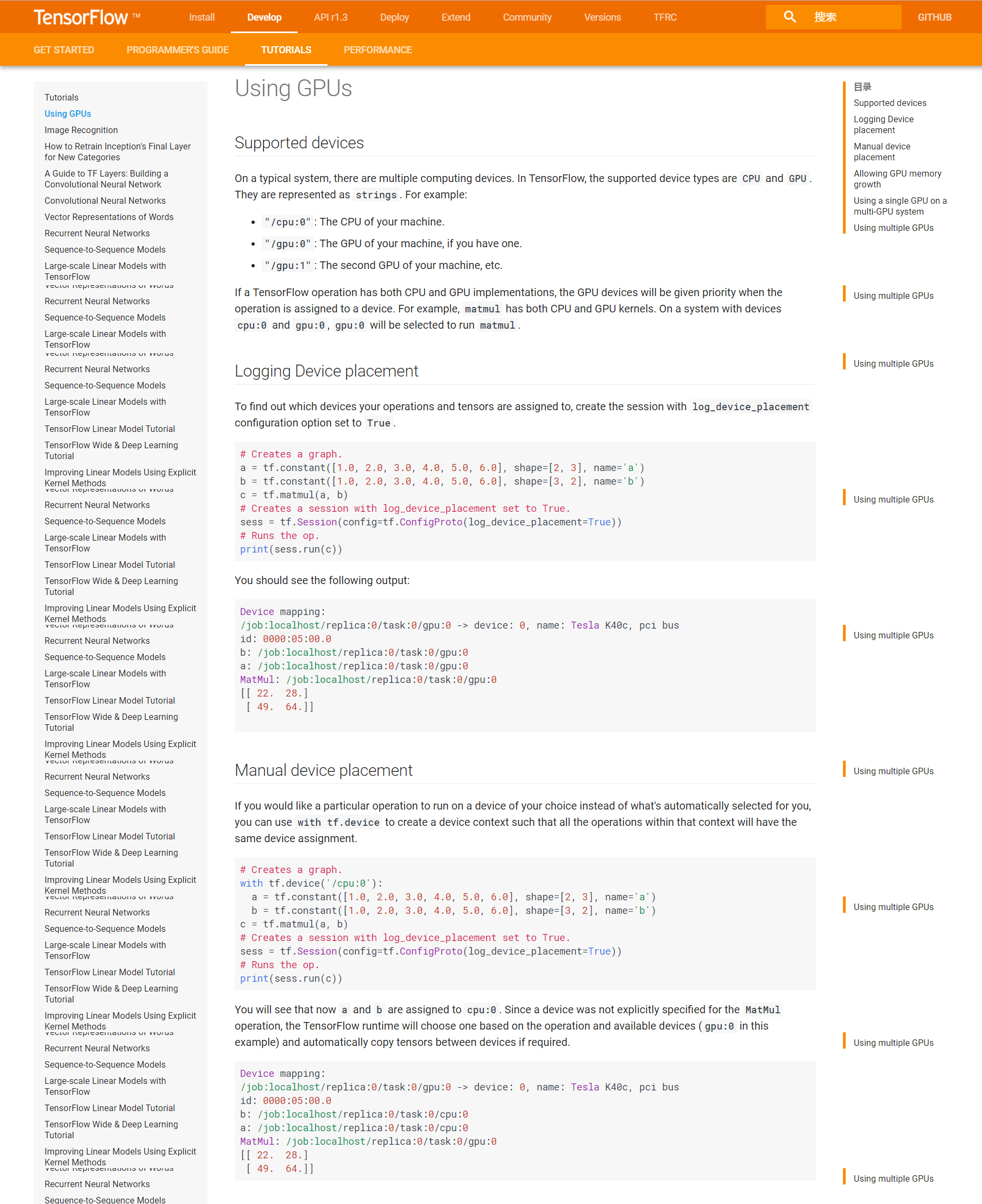
Using GPUs
Linux下Anaconda的安装使用与卸载-注:安装Anaconda最后一步要选yes
Step1 添加清华镜像,加快下载速度, 创建tensorflow-gpu环境
conda config --add channels https://mirrors.tuna.tsinghua.edu.cn/anaconda/pkgs/free/
conda config --set show_channel_urls yes- 1
- 2
conda create -n tensorflow-gpu python=3.6
source activate tensorflow-gpu #(linux下+source, windows下无需+source)- 1
- 2
Step2 安装tensorflow-gpu
conda install tensorflow-gpu- 1
Step3 安装keras-gpu
conda install keras-gpu- 1
注意:一定要加上-gpu,否则系统会默认成cpu
Step4 验证是gpu还是cpu
- 默认gpu
import tensorflow as tf
# Creates a graph.
a = tf.constant([1.0, 2.0, 3.0, 4.0, 5.0, 6.0], shape=[2, 3], name='a')
b = tf.constant([1.0, 2.0, 3.0, 4.0, 5.0, 6.0], shape=[3, 2], name='b')
c = tf.matmul(a, b)
# Creates a session with log_device_placement set to True.
sess = tf.Session(config=tf.ConfigProto(log_device_placement=True))
# Runs the op.
print(sess.run(c))- 1
- 2
- 3
- 4
- 5
- 6
- 7
- 8
- 9
- 手动设置gpu与cpu
# Creates a graph.
import tensorflow as tf
with tf.device('/cpu:0'):
  a = tf.constant([1.0, 2.0, 3.0, 4.0, 5.0, 6.0], shape=[2, 3], name='a')
  b = tf.constant([1.0, 2.0, 3.0, 4.0, 5.0, 6.0], shape=[3, 2], name='b')
c = tf.matmul(a, b)
# Creates a session with log_device_placement set to True.
sess = tf.Session(config=tf.ConfigProto(log_device_placement=True))
# Runs the op.
print(sess.run(c))- 1
- 2
- 3
- 4
- 5
- 6
- 7
- 8
- 9
- 10
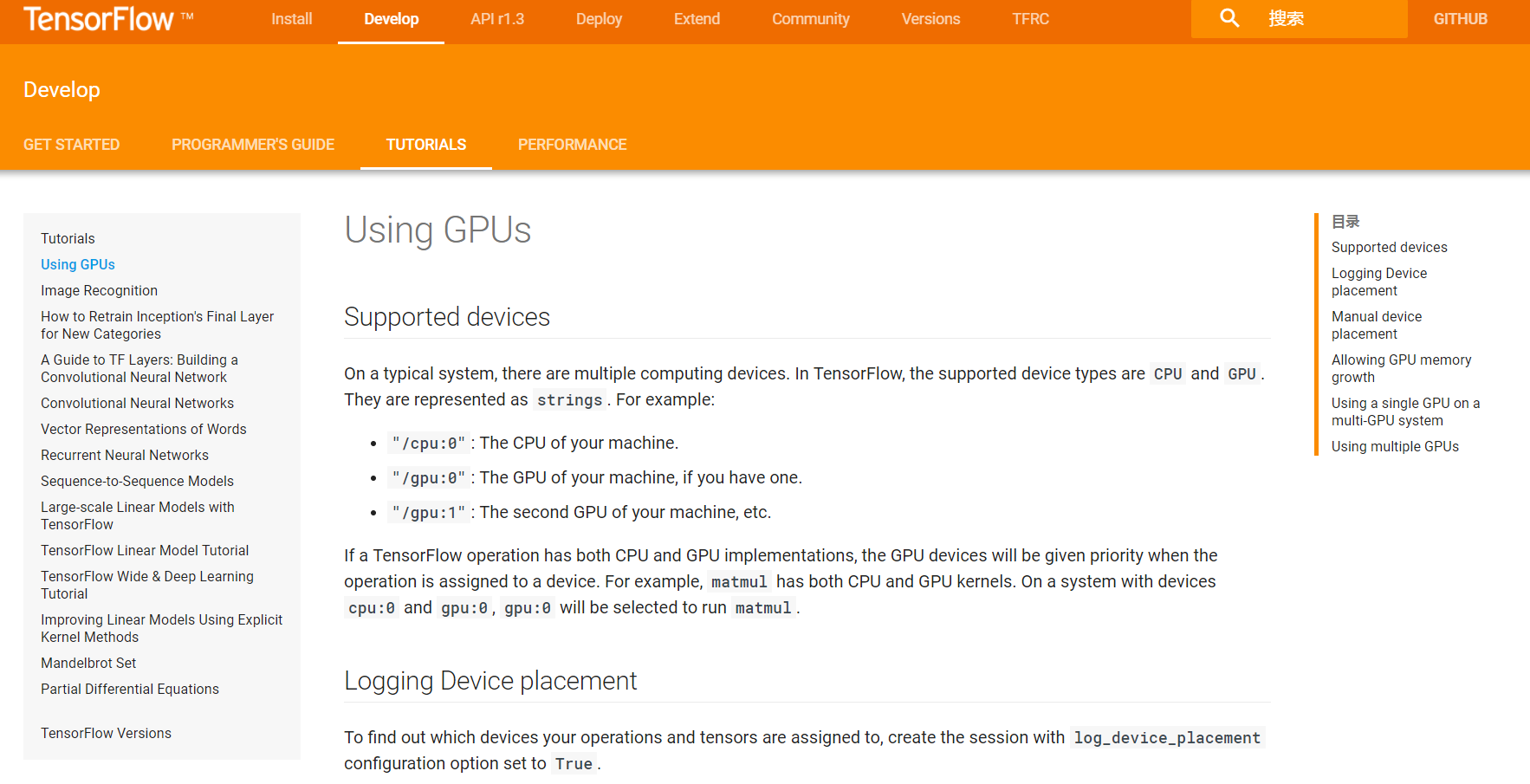
若成功运行Gpu则在终端会有相应的gpu提示提示,例如:/gpu: 0 如下图: